Using Wireshark for Root Cause Analysis and Remediation of a Local Area Home Network Disruption
Classification: Internal Technical DocumentationStatus: Resolved
Documented by Michael Andrei P. Niñora

Disclaimers
- I am not a professional in these fields. But documenting and figuring out solutions in these findings could help me learn and deepen my knowledge.
- This is not a school project, although some of these tools I learned from school and with the help and guidance of AI, meaning I carefully analyze my prompts and give context and constructive feedback to AI tools so it could guide me and help me learn.
- There will be a highlight indicator like
thisin which it will highlight any commands used in this case. - To safeguard private network details, some specific octets of the IP addresses and MAC addresses displayed in this report have been partially masked using asterisks (*).
1. Overview
On July 22, 2026, one of our home networks went down. Phones and laptops got stuck trying to connect, and the Wi-Fi extender upstairs started blinking red; its way of saying something had broken.
Digging into the traffic with Wireshark turned up the real problem: my workstation and the extender ("Alien") were both trying to claim the exact same local address, 192.168.1.*, at the same time. When two devices fight over the same address like that, the network loses track of who's who; new devices can't get assigned an address of their own, and everything connected through that extender gets cut off.
The fix turned out to be simple: power-cycling the router and both extenders to clear out the stale address records. Once everything came back up, the extender grabbed a clean, unique address (192.168.68.***) and the network settled back to normal; no more conflict, no more red light.
2. Environment and Network Topology
The environment consists of a multi-node wireless extension architecture:
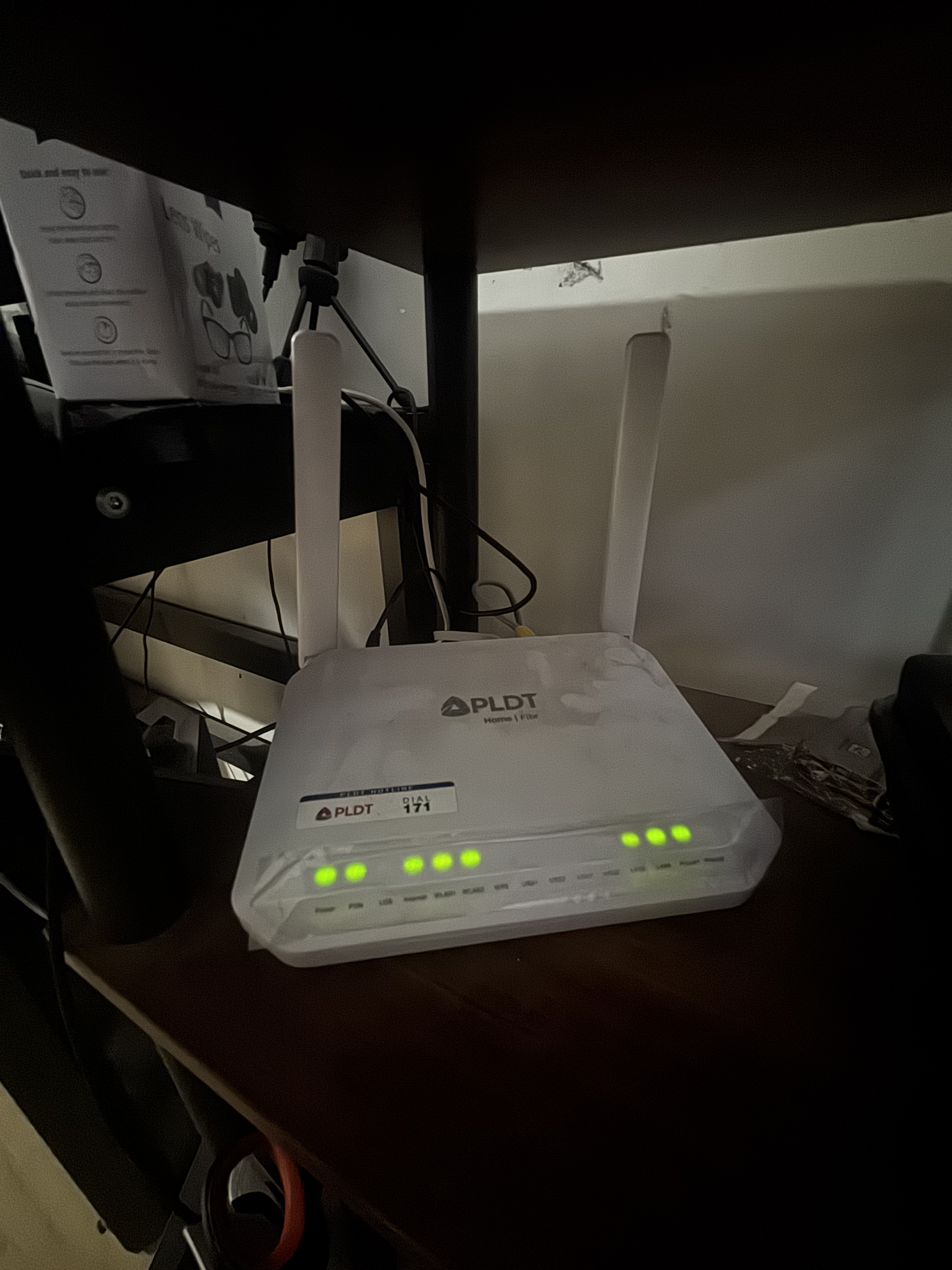
- Primary Internet: 1 PLDT WiFi FiberHome Router acting as the primary DHCP server, NAT gateway, and DNS forwarder.
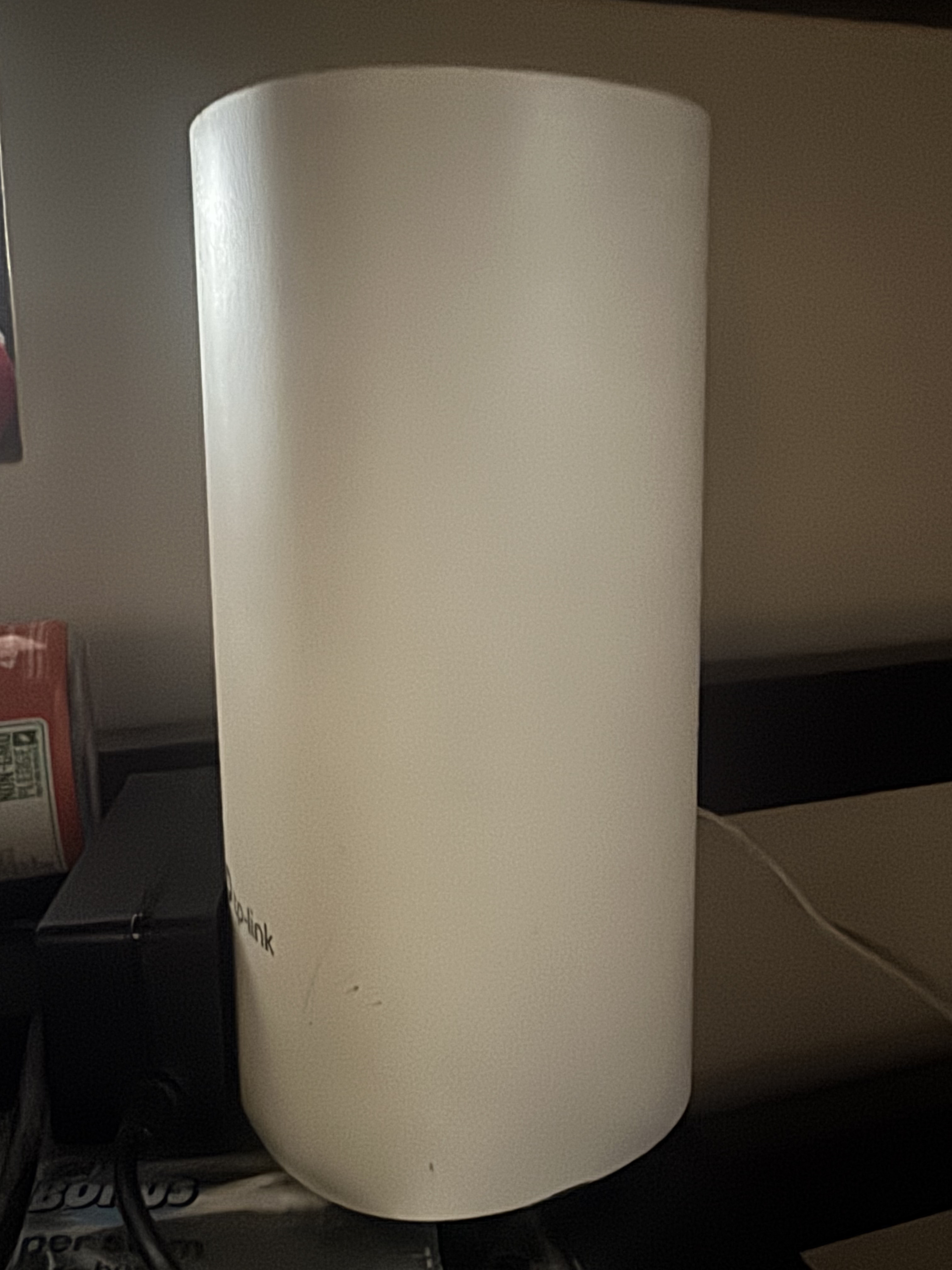
- Primary Extension Node ("Alien"): 1 TP-Link WiFi Repeater positioned inside the primary room, adjacent to the PLDT router. "Alien" is the name that shows up in WiFi settings when connecting to this repeater.
- Secondary Extension Node: 1 TP-Link WiFi Repeater positioned in the upper living room, relaying signal to distant endpoints.
- Our Endpoints: multiple workstation, mobile, and guest devices connecting dynamically over 2.4GHz / 5GHz.
Sanitization Note: all public WAN IP addresses, external routing tables, and pre-shared keys have been redacted or omitted to protect private network credentials. Local private IP addresses reflect the actual captured environment states.
3. Tools and Key Findings
Tools used:
- Wireshark v4.x: packet sniffing, display filtering, protocol hierarchy evaluation, and Expert Information analysis.
- macOS command line utilities: Terminal (
ipconfig getifaddr en0/en1) for local socket and routing verification.
4. Symptom and Initial Isolation
- User symptom: multiple client endpoints, including mobile devices and secondary laptops, failed to establish internet connectivity. They stayed stuck in an "Obtaining IP Address" loop or showed a Wi-Fi icon with no connection.
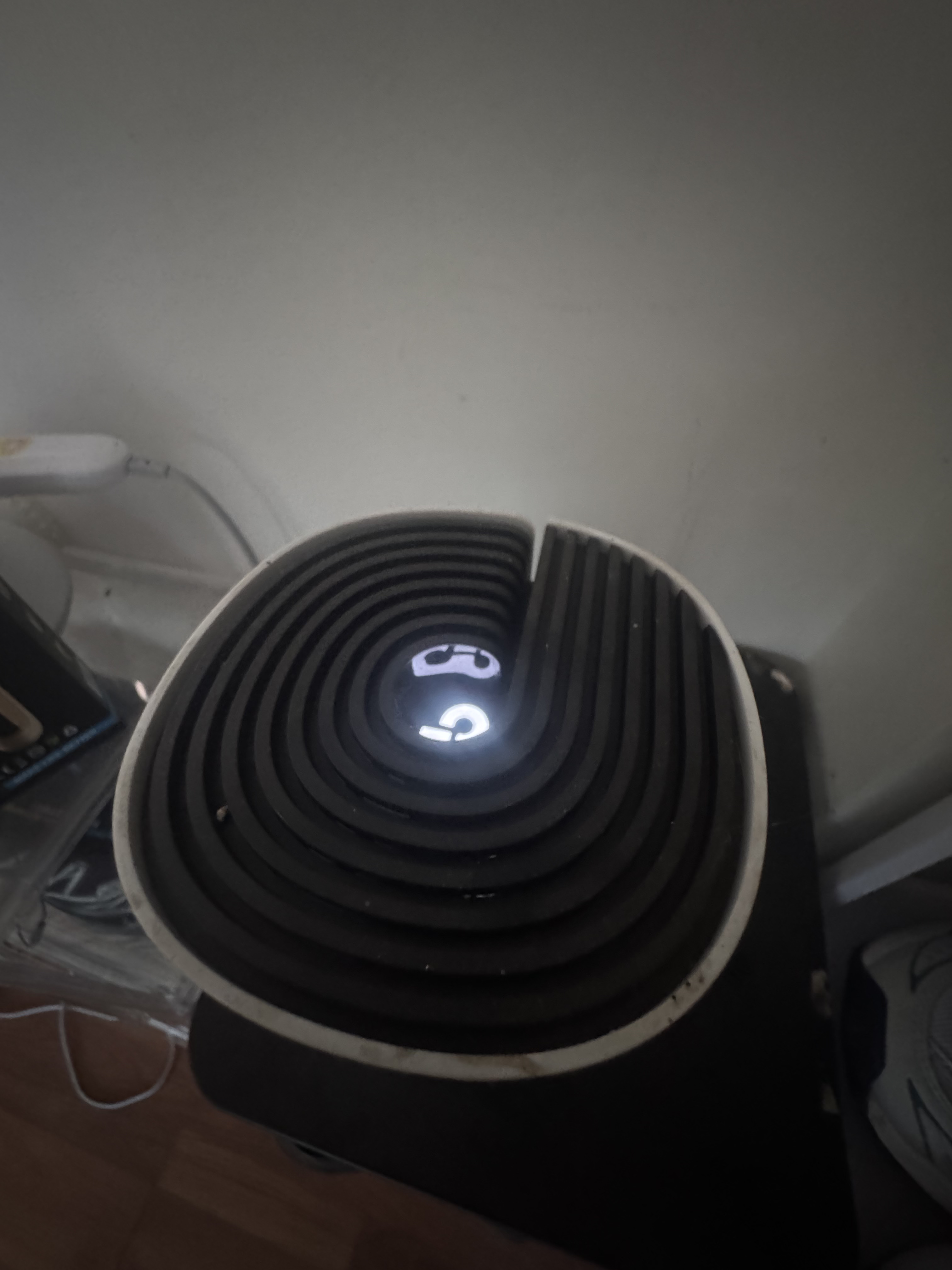
- Hardware indicator: the TP-Link repeater in the upper living room displayed a red LED, indicating complete loss of wireless backhaul to the root gateway.
- Local endpoint check: gateway reachability was verified with ICMP echo requests to the default gateway (
192.168.1.1*). Basic pings succeeded, but broader network stability degraded rapidly under simultaneous web requests.
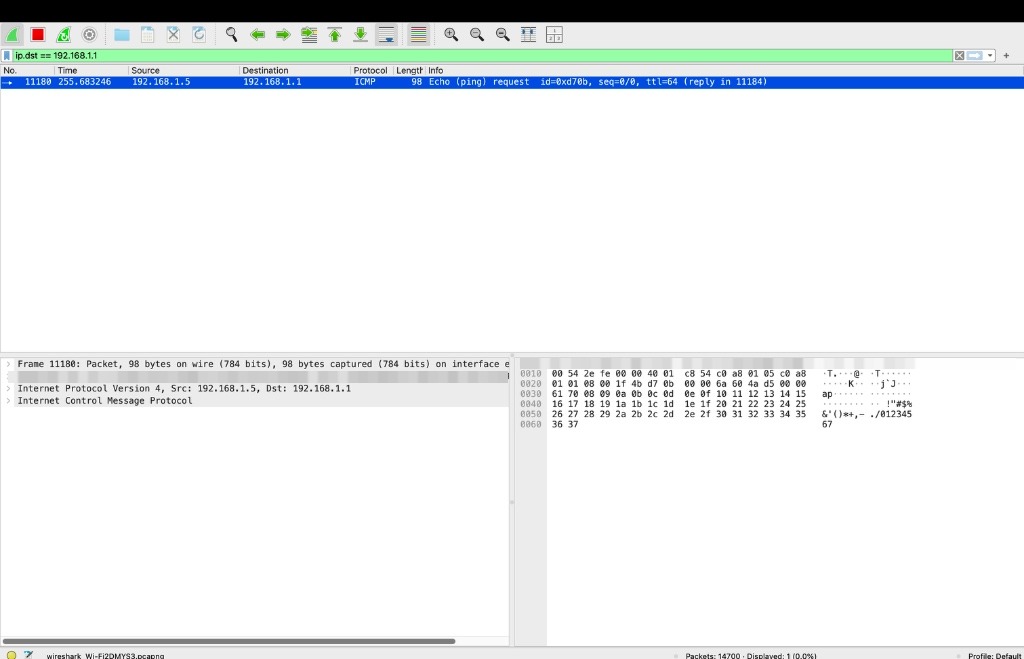
192.168.1.5*) to the default gateway (192.168.1.1*).5. Use of Wireshark for Evidence Gathering
The investigation began by capturing live packets on the active wireless interface (en0 / Wi-Fi) and applying incremental display filters to isolate the anomalous behavior.
Step 1: Evaluating workstation inbound traffic
To inspect incoming packets sent to the local endpoint, the following filter was executed: ip.dst == 192.168.1.5*. This filters for all incoming data addressed to my machine, to see whether external servers can reach it or whether connections are being dropped and reset ([RST]).
Observation: Wireshark logged numerous TCP anomalies, specifically TCP Resets ([RST]) and Duplicate Acknowledgments ([TCP Dup ACK]); multiple external servers (e.g. Apple, Microsoft endpoints) were terminating connections abruptly due to lost state tracking.
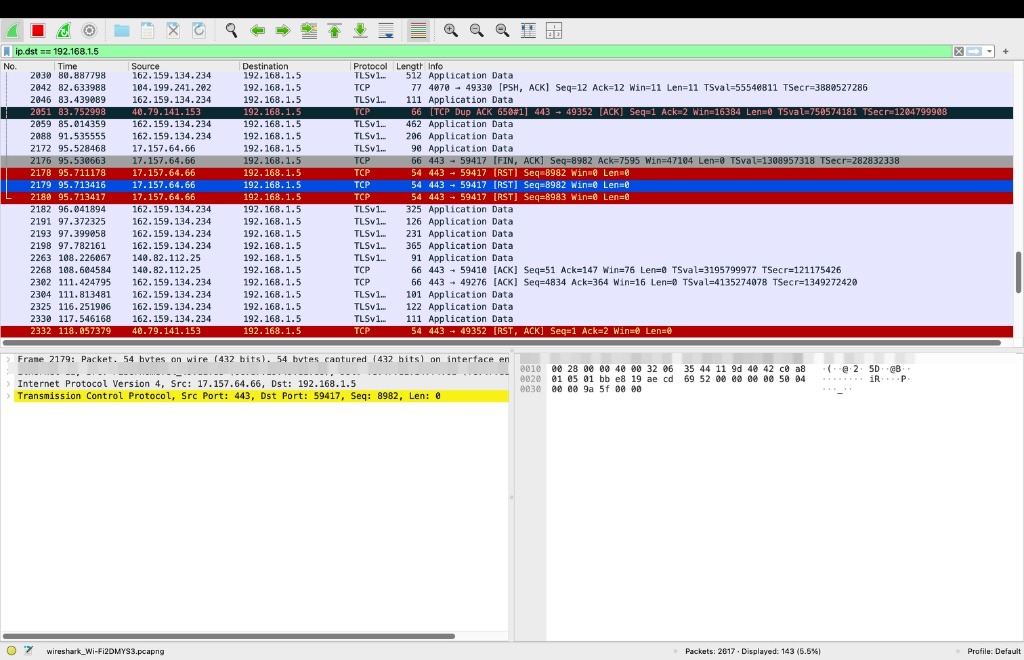
ip.dst == 192.168.1.5*) highlighting TCP Reset packets and Duplicate Acknowledgments.Step 2: Isolating extender hardware traffic
To inspect flows generated by or directed to the TP-Link extender, a hardware MAC address filter was applied: eth.addr == 12:3e:cc:ba:**:**. This isolates every packet tied to the repeater's MAC address, cutting out the rest of the network noise.
Observation: Wireshark recorded a massive volume of broadcast ARP requests generated by the extender:
Source: 12:3e:cc:ba:**:**Info: Who has 192.168.1.X? Tell 192.168.1.5*
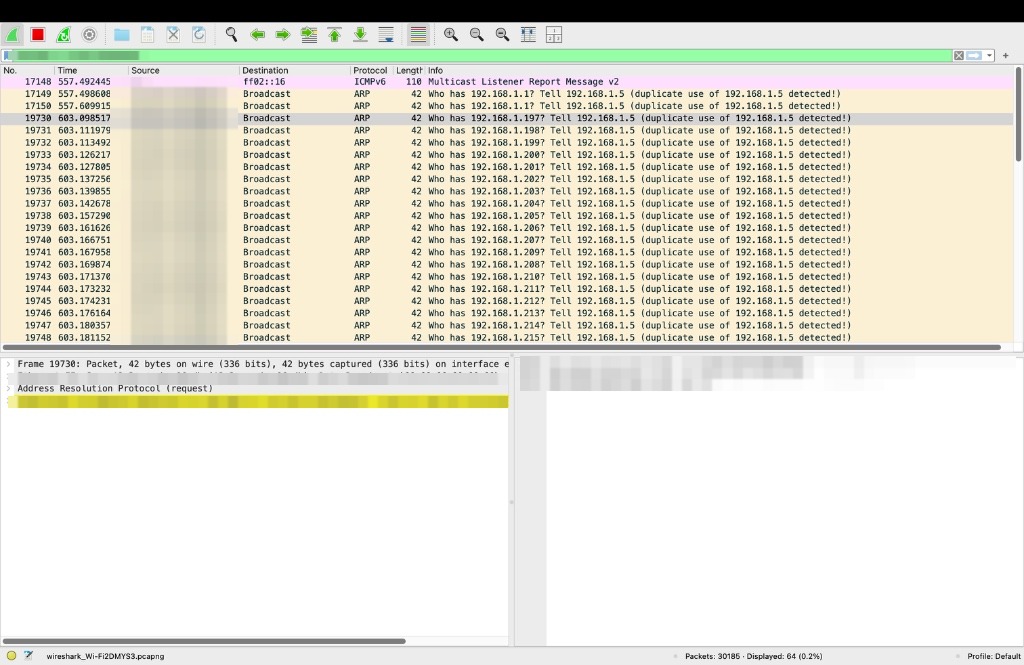
eth.addr == 12:3e:cc:ba:**:**) showing flooded ARP broadcast requests and the duplicate IP warning banner.Step 3: Specific ARP source filtering and detail analysis
To isolate outbound ARP broadcasts strictly from the extender's interface: arp and eth.src == 12:3e:cc:ba:**:**. This looks only at ARP announcements sent out by the repeater, catching the exact moment it claims ownership of the conflicting 192.168.1.5* address.
Observation: the extender was actively broadcasting to every address in the subnet (.197, .198, .201, etc.), asserting that MAC address 12:3e:cc:ba:**:** owned IP 192.168.1.5*. At the same time, the capture history showed the analyst's workstation (fe:47:d1:14:**:**) claiming that exact same IP address.
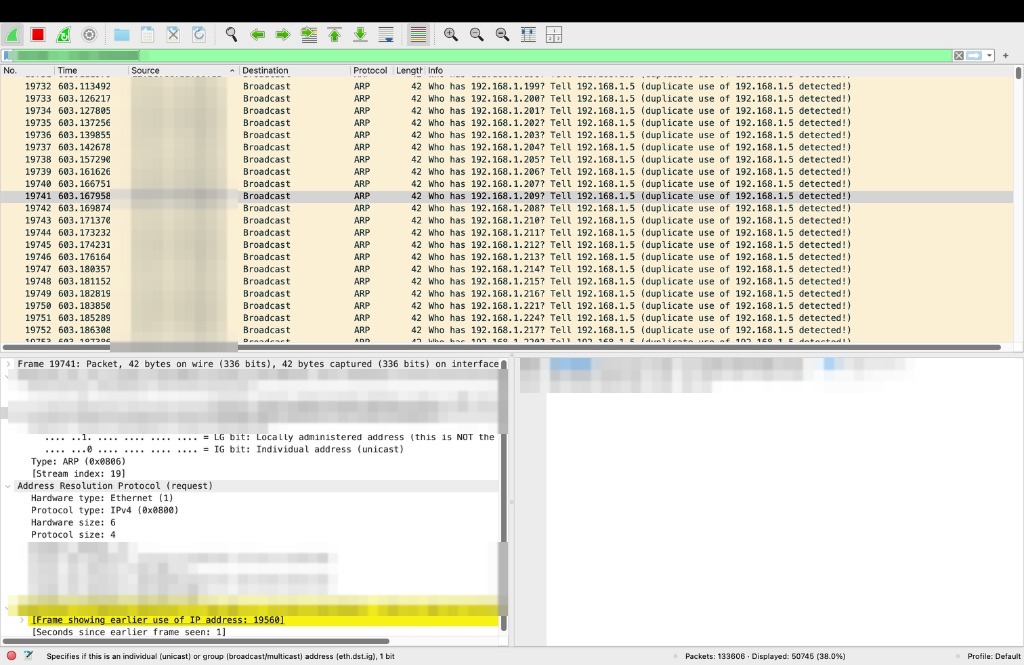
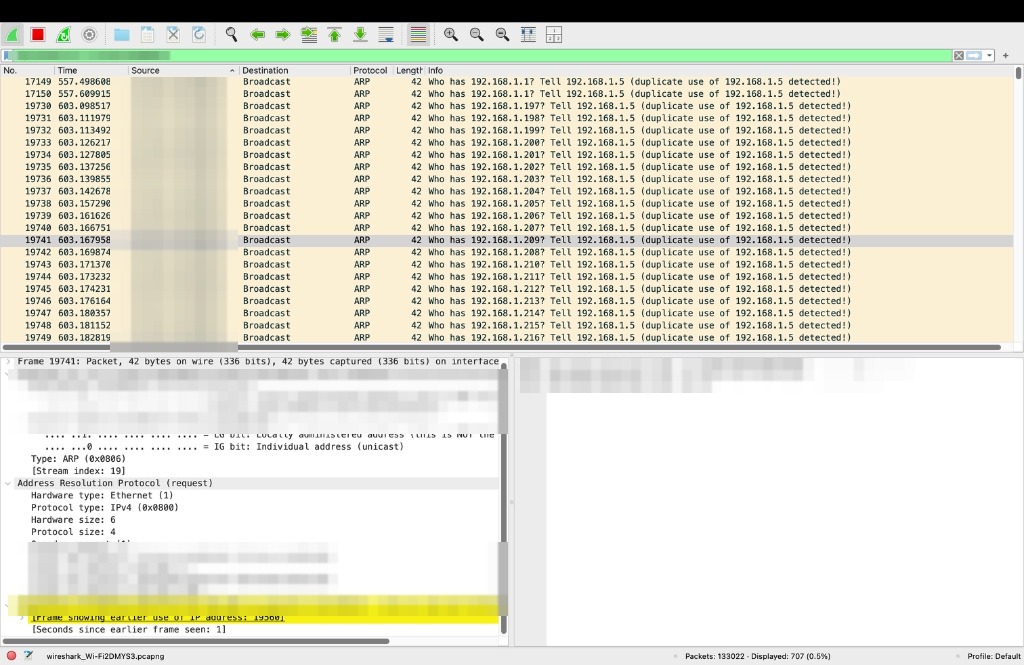
arp and eth.src == 12:3e:cc:ba:**:**) displaying continuous broadcast probes across the .1 subnet, prior to reboot.Step 4: Expert Information diagnostic confirmation
Opening Wireshark's Expert Information window (Analyze → Expert Information) confirmed the flaw:
- Severity: Warning
- Group: Sequence
- Protocol: ARP / IPv4
Duplicate IP address detected for 192.168.1.5* (12:3e:cc:ba:**:**)also in use by fe:47:d1:14:**:** (frame 19560)
Additional errors generated by this state included:
- DNS query retransmission: DNS requests dropping due to routing ambiguity.
- DNS response missing: gateway responses delivered to the incorrect hardware interface.
- Connection reset (
[RST]): abrupt TCP socket termination.
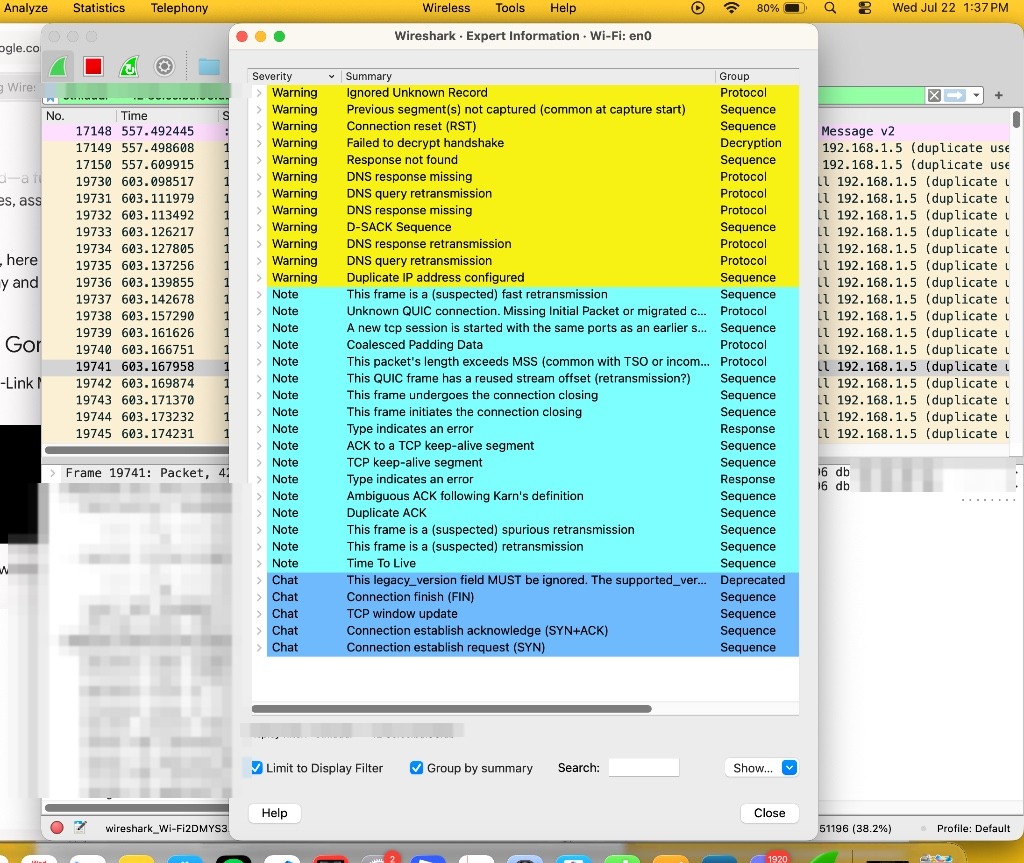
6. Remediation Strategy
Since the PLDT gateway's internal DHCP lease table was corrupted with conflicting binding entries, a software-only release was insufficient, so a full physical power-cycle sequence was implemented to clear volatile memory on every network node.
Solution: unplug it, then plug it back in
- Complete power disconnection: unplugged the primary PLDT FiberHome router and the primary room repeater ("Alien") from their sockets at the same time.
- Capacitor discharge period: kept both devices unpowered for 30 seconds to fully wipe internal ARP tables and DHCP binding states.
- Sequential boot sequence: re-powered the PLDT router first, allowing 2 minutes for WAN sync and DHCP initialization, then re-powered the primary room repeater ("Alien") and let it auto-associate with the gateway.
7. Post-Fix Verification and Key Takeaways
A fresh live capture was started after the power-cycle, reapplying the hardware filter to check live bridge behavior: eth.addr == 12:3e:cc:ba:**:**
Results
- Clean IP re-assignment: the extender requested and received a clean, unique IP (
192.168.68.107*) from gateway192.168.68.1*. - Zero duplicate IP warnings: the Expert Info alerts vanished completely.
- Protocol normalization: traffic shifted cleanly to standard encrypted protocols (TLSv1.3, TCP, QUIC) without packet loss.
- Hardware status: the upper living room extender returned to its normal white/blue status LED, confirming an active backhaul link. Every client regained stable internet immediately.
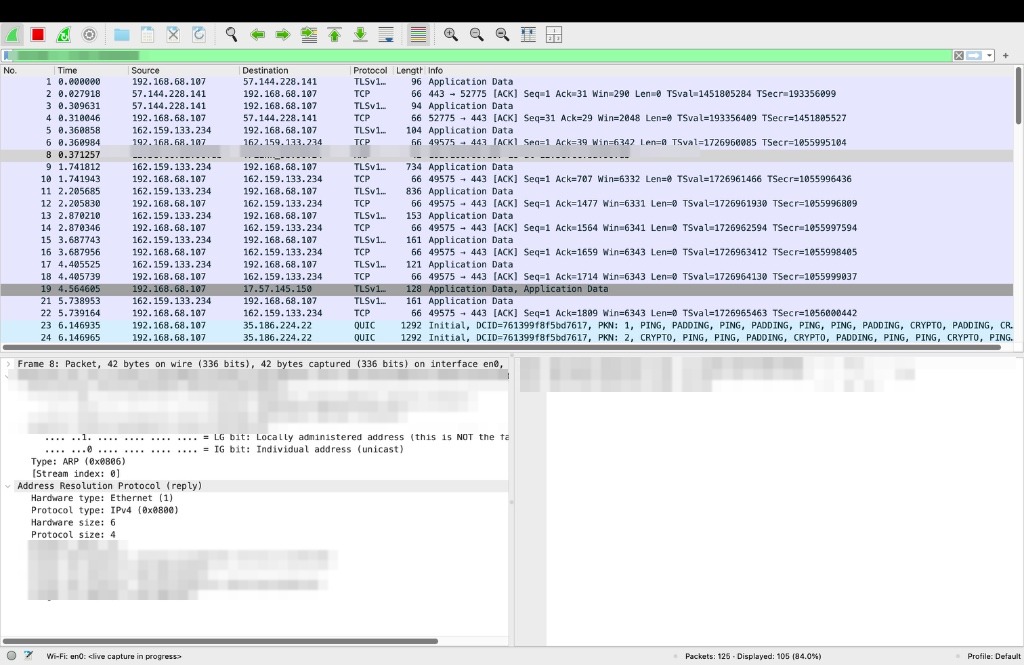
192.168.68.107*), active TLSv1, and QUIC streaming traffic without errors.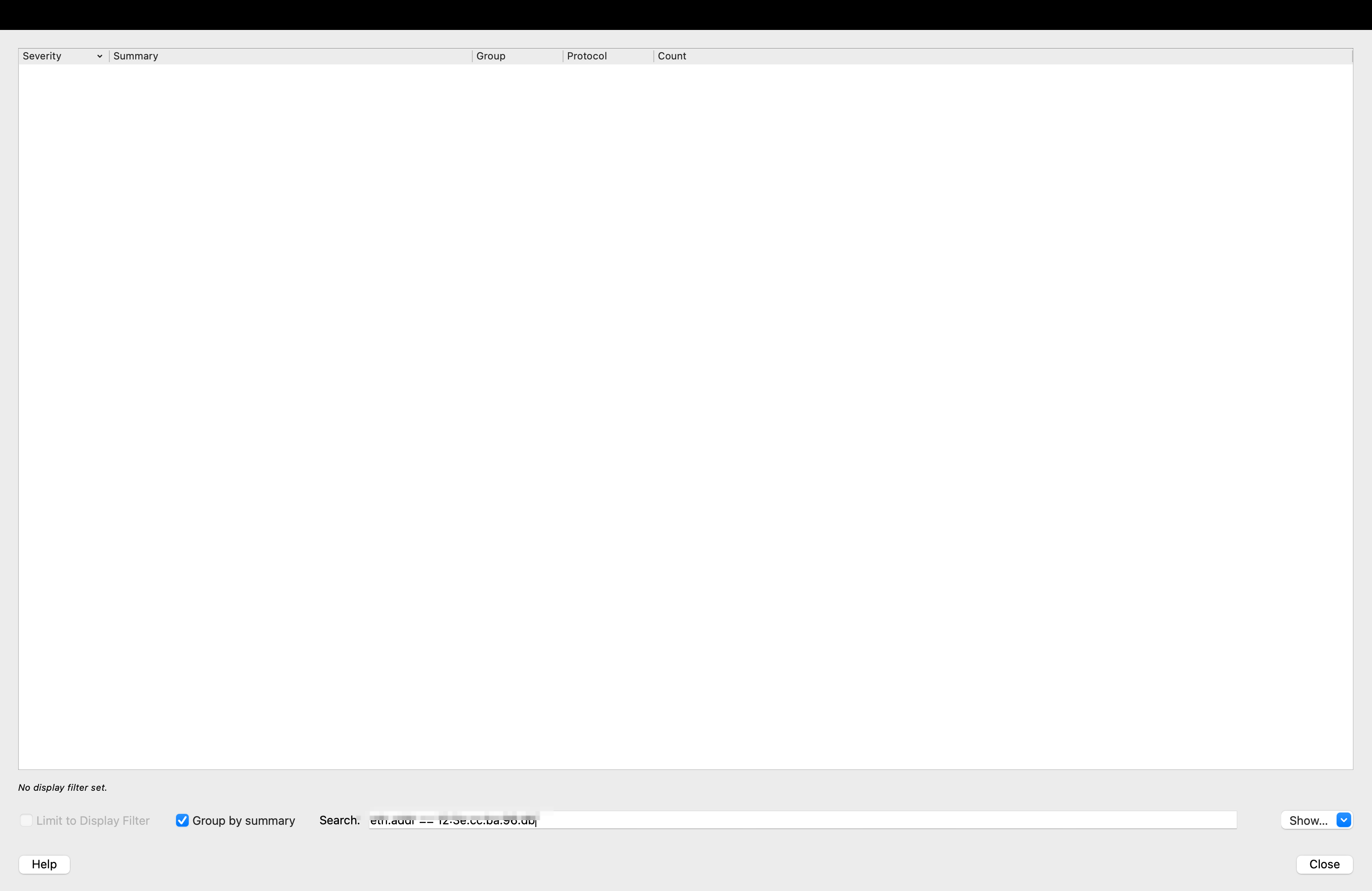
Documented Wireshark commands reference
| Filter command | Purpose | Finding / result |
|---|---|---|
ip.dst == 192.168.1.5* | Inspects inbound traffic targeting the workstation | Revealed TCP resets and dropped ACKs |
ip.addr == 192.168.1.1* | Monitors bi-directional traffic with the default gateway | Confirmed baseline gateway ICMP status |
eth.addr == 12:3e:cc:ba:**:** | Filters all frames involving the TP-Link MAC address | Isolated extender behavior from general noise |
arp and eth.src == 12:3e:cc:ba:**:** | Filters ARP requests specifically sent by the extender | Uncovered continuous ARP broadcasts claiming .5* |
dns | Scans for Domain Name System queries | Identified dropped lookups during the outage |
- Filter command
ip.dst == 192.168.1.5*PurposeInspects inbound traffic targeting the workstationFinding / resultRevealed TCP resets and dropped ACKs - Filter command
ip.addr == 192.168.1.1*PurposeMonitors bi-directional traffic with the default gatewayFinding / resultConfirmed baseline gateway ICMP status - Filter command
eth.addr == 12:3e:cc:ba:**:**PurposeFilters all frames involving the TP-Link MAC addressFinding / resultIsolated extender behavior from general noise - Filter command
arp and eth.src == 12:3e:cc:ba:**:**PurposeFilters ARP requests specifically sent by the extenderFinding / resultUncovered continuous ARP broadcasts claiming .5* - Filter command
dnsPurposeScans for Domain Name System queriesFinding / resultIdentified dropped lookups during the outage
Key Takeaways
- How extender conflicts cause outages. Wi-Fi extenders pass traffic back and forth to the main router. If an extender accidentally claims the same IP address as a laptop or phone, the router gets confused and cuts off internet access for every device connected through that extender.
- Looking beyond warning lights. A red blinking light on a repeater only tells you the connection is broken, not why. Packet analysis tools like Wireshark let you look under the hood to find the actual root cause.
- How a healthy extender behaves. A working extender acts like a silent middleman: it passes traffic through without making extra noise on the network. Seeing very little direct background traffic from the repeater during active browsing is a sign it's working correctly.
- Why Wireshark mattered. PCAP tools like Wireshark made it possible to look deep into the packets and traffic behind this case, rather than guessing from symptoms alone.
End of report
← back to all blogs